
Give the title room.
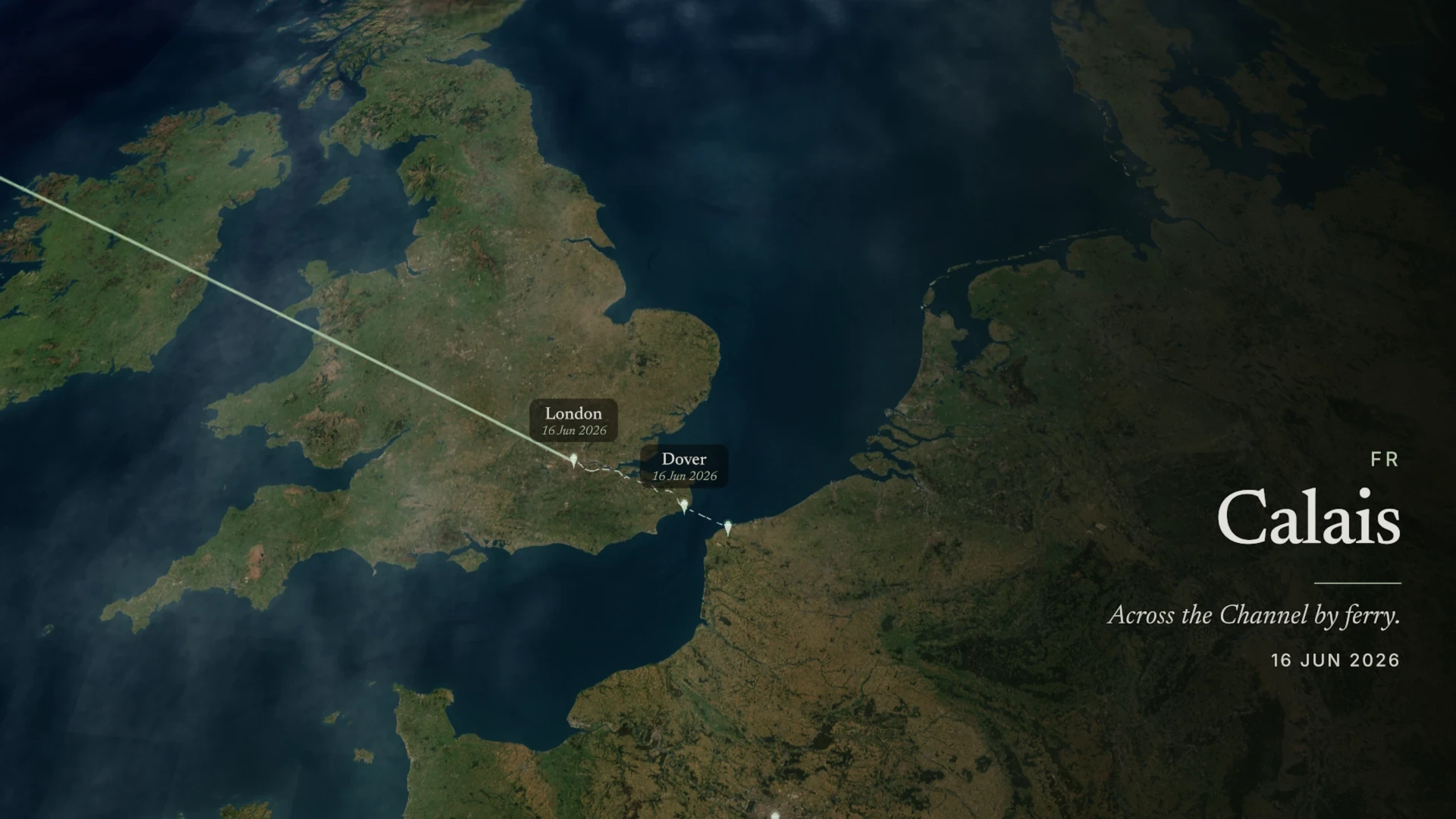
Pause on the opening title on TV, then adjust its size in the theme editor on your phone. Watch the picture refresh and check whether the title leaves enough of the map in view.
TrailVid for Apple TV
Edit a travel map on iPhone. Watch your theme and route take shape on Apple TV, without exporting between revisions.
Set up live previewAvailable in the TrailVid beta. Requires tvOS 26 or later on Apple TV.
A second screen for your edit
A title that feels right on your phone can dominate a television. Use the big screen to refine a widescreen map for your travel film or YouTube edit.
Pause on the opening title on TV, then adjust its size in the theme editor on your phone. Watch the picture refresh and check whether the title leaves enough of the map in view.
In the theme editor, open Routes and choose a transport mode. Try a different route color or width, then step back to see whether you can still follow it across a bright coastline or a dark city.
Add a place on the phone. The TV picks up the revised trip at its next playback transition, so you can watch how the new stop fits into the journey.
The TV preview uses SDR and has its own playback quality settings. Check your final aspect ratio and exported file on iPhone or iPad, especially for HDR or a vertical cut.
When you are ready to watch
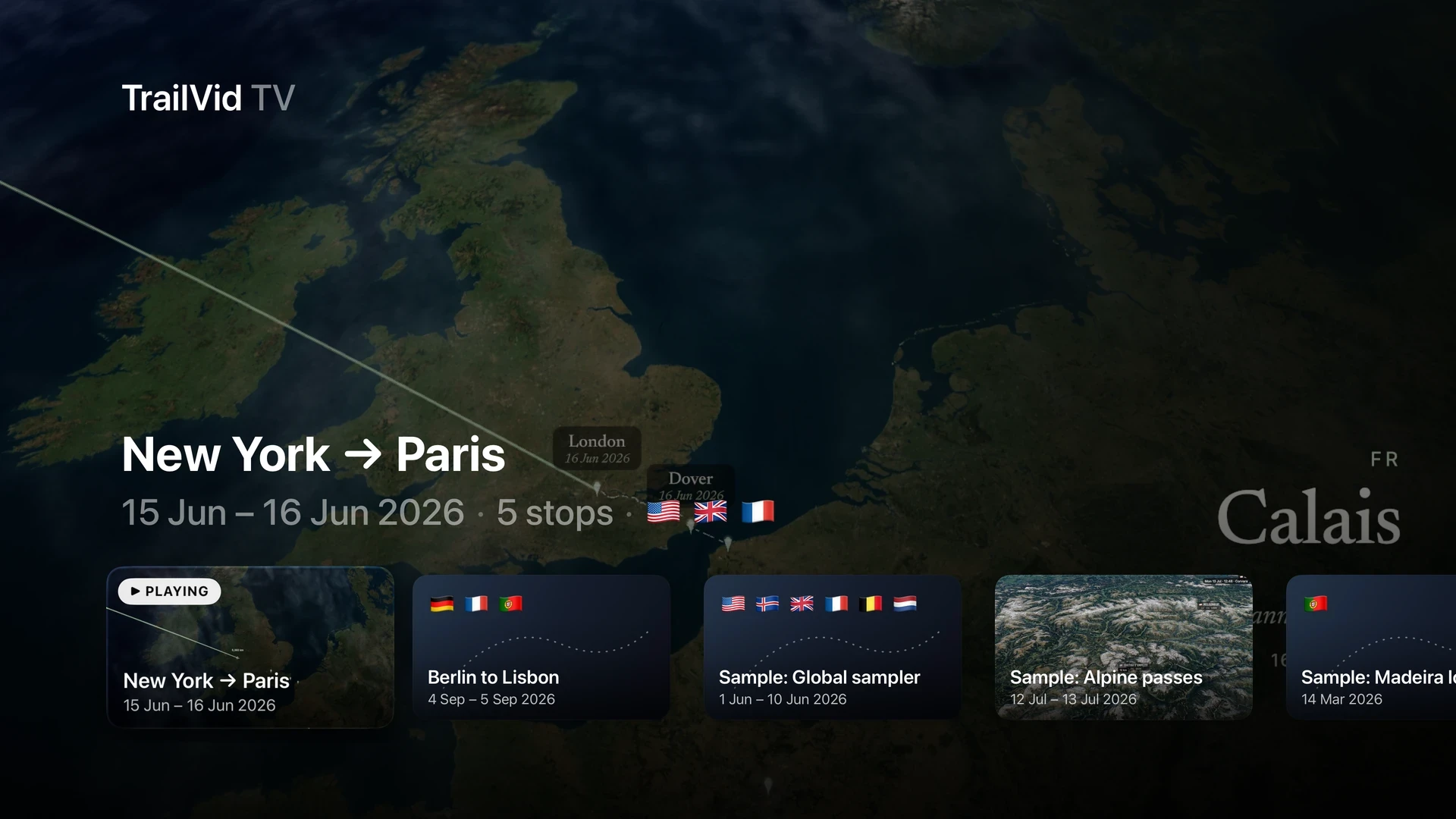
Your iCloud library is on the TV too. Pick a saved trip, settle in, and play, pause, or scrub with the Siri Remote.
Once the trip has synced, your phone can take a break. TrailVid plays the journey on Apple TV with its own controls. There is a bundled demo to try before you add your own trips.
Get connected
You need the Apple TV hardware connected to your television, plus TrailVid on your iPhone or iPad.
Requires tvOS 26 or later on Apple TV. Requires iOS 26 or iPadOS 26.
Join the betaOne TestFlight invitation includes the phone and TV apps.
Install TestFlight on iPhone, open the TrailVid beta invitation, and accept it. Install TrailVid if you have not already.
Install TestFlight from the App Store on Apple TV. Open it using the same App Store account you used on iPhone, then select TrailVid and install it.
Use the same Apple Account for iCloud on both devices. Turn on iCloud sync in TrailVid on your phone, then open TrailVid on the TV. Your saved trips appear in its library.
Keep both devices on the same home network and allow Local Network access on your phone. Open the same trip on both, then change its theme on the phone and watch the TV preview update.
Good to know
Requires tvOS 26 or later on Apple TV. Create and edit with TrailVid on iPhone or iPad. Requires iOS 26 or iPadOS 26. The Apple TV app built into a smart television cannot run TrailVid; you need the Apple TV hardware.
No. The TV previews the synced trip directly. Theme changes refresh the current picture after they arrive. Adding or removing a stop updates the journey automatically at the next playback transition. Resume playback if you have paused while changing the route.
TrailVid runs on Apple TV and draws the trip there. The phone keeps its editing controls while the TV shows the journey. Each device has its own playback controls.
Open Apple TV in TrailVid’s settings on your phone to check the connection. Confirm that both apps use the same iCloud account and home network, and allow Local Network access in iPhone Settings. Use Connect or Try Again to retry, or Refresh iCloud on both apps to refresh the library.
Keep TrailVid open on your phone while editing for the live preview. Once a trip has synced, you can browse and play it on Apple TV with the remote. Try the bundled demo if you have not synced a trip yet.
Use the large preview to judge your theme, route, and widescreen composition. The TV has its own playback quality settings and uses SDR. Check your chosen aspect ratio and the finished export on iPhone or iPad, especially for HDR or a vertical video.
Editing and export stay on iPhone and iPad. Apple TV gives you a live view while you work and a library to watch when you are ready.
Yes. Use the same public TestFlight invitation for iPhone, iPad, and Apple TV. Everything is open during the beta. Pricing after the beta is still undecided.